BDE Digital Student Guide
How to continue your course if you feel stuck
This simple guide explains how to find your current activity, understand course progress colours, and follow the required course sequence. It is written for students and does not require any technical knowledge.
BDE Digital Learning Management System (LMS) provides users with comprehensive functionality for interacting with the system, allowing access to various online course sections and uploading files. The LMS uses a robust and stable cloud-based platform. Throughout the course, the system presents several intuitive messages to address any situation. However, due to the complexities of the online course, authentication system, workflows and other processes, unexpected issues may surface. In this document we have highlighted the issues that may occur and what a user can do to avoid or fix them.
1. Quick Status Guide
| Colour | Meaning | What You Should Do |
|---|---|---|
| Green | Completed | You have already completed this item. |
| Yellow | In Progress | This is usually where you should continue. |
| Red | Not Started | This item still needs to be completed. |
2. Required Course Flow
Your course is designed to move in order. Each step must be completed before the next step opens.
| Required Step | What It Means |
|---|---|
| 1. Module Content | Complete the lessons and required pages for the module. |
| 2. Module Feedback | Submit the short feedback/review for the module, if shown. |
| 3. HomeLink Activities | Complete the HomeLink assignments for the same module. |
| 4. HomeLink Quizzes | Complete all required HomeLink quizzes for the module. |
| 5. Module Quiz | Complete the module quiz after the module and HomeLink work are done. |
| 6. Next Module | The next module opens only after the current module requirements are complete. |
3. How to Continue If You Feel Stuck
Follow these steps in order. The screenshots below show where to click.
1 Open BDE Course Overview and Modules
Start from the BDE Course Overview and Modules page. Find the module that shows In Progress. Click that module tile. Do not restart completed modules.
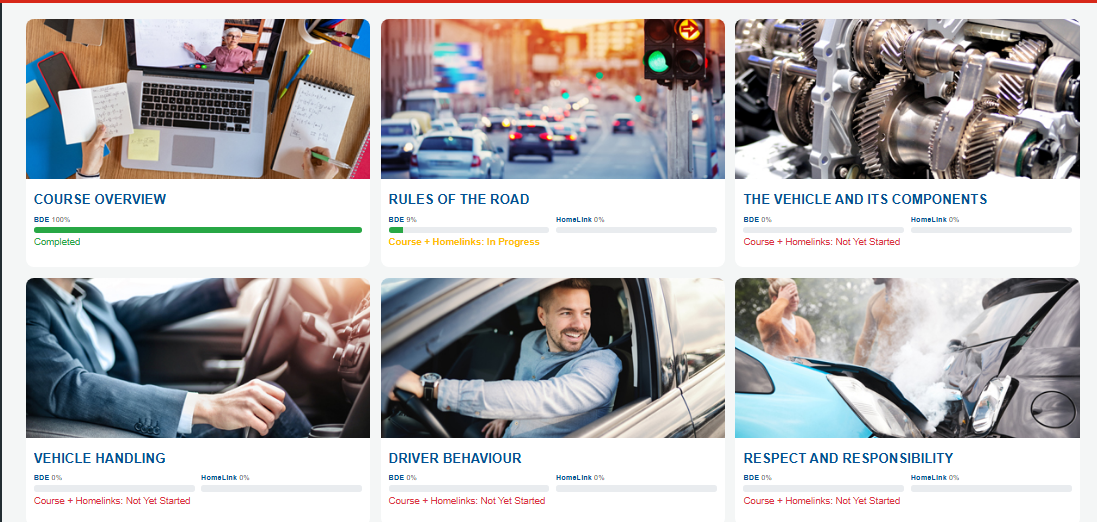
Screenshot IMG01 – Choose the module that is currently in progress.
2 Open the Module Topics Tab
Inside the module, click the Module Topics tab OR click the Next link at the bottom of the page. This page shows the topics and activities inside the module.
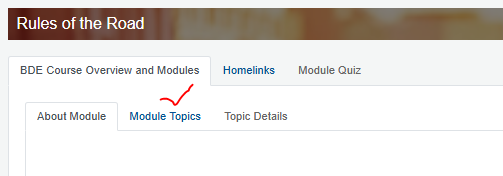
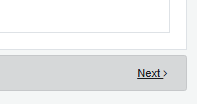
Screenshot IMG02 / IMG03 – Use the Module Topics tab OR click the Next > link at the bottom to see your module activities.
3 Use the Next Button Carefully
The Next > link moves through the course sequence. If the same page or quiz keeps appearing, stop clicking Next repeatedly and return to Module Topics.
4 Review the Topic List
On the Module Topics page, check the colour beside each item. Green means completed, Yellow means in progress, and Red means not started. Use the (+) icon to expand a topic and see the activities inside it.
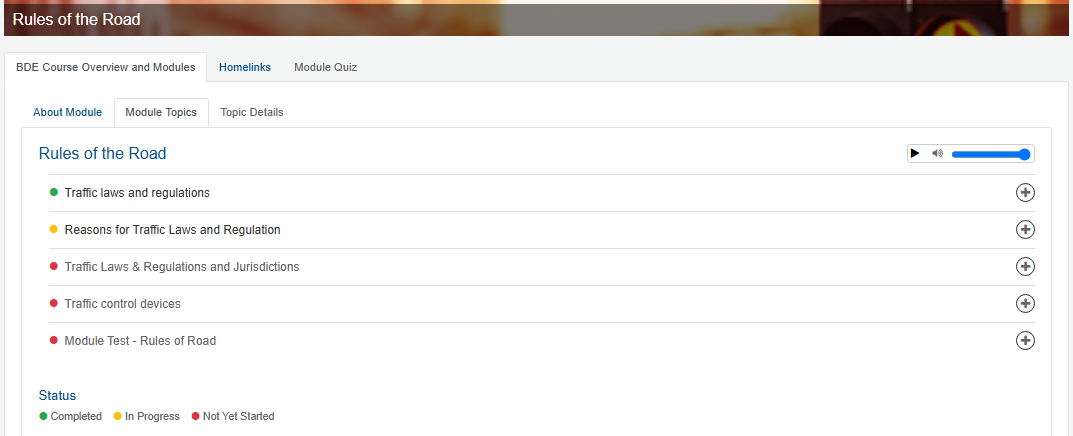
Screenshot IMG04 – Check the status colours and use the + icon.
5 Continue From the First Unfinished Activity
After expanding the topic, open the first activity that is yellow or red. This is normally the correct place to continue.
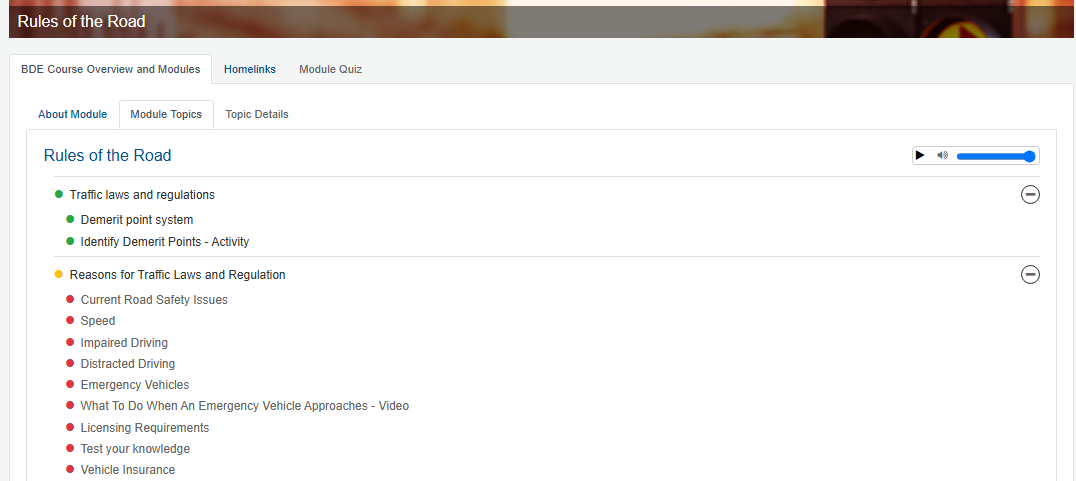
Screenshot IMG05 – Continue from the first unfinished activity.
Where should I continue?
- If you see a yellow item, continue from that item first.
- If there are no yellow items, continue from the first red item.
- If everything is green but the next module is still locked, contact support and include a screenshot.
- Avoid restarting the module from the beginning unless your school or support team tells you to do so.
4. Important Course Requirements
Please review these requirements before continuing your course. They help explain why some pages, activities, or quizzes may be locked.
| Requirement | What This Means for You |
|---|---|
| Course Time Limit | The full BDE program must be completed within 365 days from your official course start date. This includes digital theory, HomeLink assignments, and in-car lessons. |
| Daily Learning Limit | Students may not complete more than 5 hours of online/digital instruction in one calendar day. |
| Page Timers | Some pages have required timers. You must wait for the timer to finish before moving forward. |
| Mandatory Breaks | The system may pause your learning if a required break is needed. |
| 40-Hour Course Structure | The BDE program includes 20 hours of digital theory, 10 hours of HomeLink/flexible assignments, and 10 hours of in-car training. |
| Complete in Order | Modules and activities must be completed in sequence. Skipping ahead is not permitted. |
| HomeLink Unlocking | HomeLink activities unlock after the matching module content is completed. |
| Theory Before In-Car | The digital theory portion must be completed before in-car lessons can begin, unless your school gives different instructions. |
| One Device, One Session | Use only one device and one browser session at a time. Do not log in from a phone and computer at the same time. |
| Security Verification | Security questions may appear during login and before quizzes. This helps protect your account and verify your identity. |
| Passing Grade | Students must meet the required passing grade on quizzes and assessments to complete the digital course successfully. |
| Active Participation | Do not just leave a page open. Read, watch, answer questions, complete activities, and stay actively engaged. |
5. Common Questions and What to Do
I keep seeing the same quiz.
- Return to Module Topics.
- Expand all sections using the (+) icon.
- Complete the first yellow or red item.
- Then return to the quiz.
I cannot access the Module Quiz.
- Complete Module Content.
- Submit Module Feedback if shown.
- Complete HomeLink Activities.
- Complete HomeLink Quizzes.
- Then try the Module Quiz again.
My HomeLink activities are locked.
- Complete the matching module content first.
- Return to the HomeLinks tab after the module content is complete.
I keep getting asked a security question.
- Log out of the portal.
- Close your browser.
- Log back in using only one device.
- Go to Module Topics and continue from the first unfinished item.
My next module is not unlocking.
- Check the current module for yellow or red items.
- Make sure module content, feedback, HomeLink activities, HomeLink quizzes, and the Module Quiz are complete.
I closed my browser by mistake.
- Log back in.
- Open BDE Course Overview and Modules.
- Open the current module.
- Click Module Topics and continue from the yellow or red item.
I am logged in on more than one device.
- Log out from all devices.
- Use only one device and one browser.
- Log back in and continue from Module Topics.
The timer is not allowing me to continue.
- Stay on the page.
- Review the content while the timer is running.
- Continue only when the Next button becomes available.
I reached the daily learning limit.
- It automatically saves your progress.
- Return the next calendar day.
- Continue from Module Topics.
My progress does not appear to update.
- Refresh the page once.
- If needed, log out and log back in.
- Return to Module Topics and check the status colour.
- If the problem continues, contact support.
My course has expired.
- Contact your driving school as soon as possible for help.
I completed a quiz but it appears again.
- Return to Module Topics.
- Check whether the quiz shows as completed.
- If it does not show completed, contact support and provide the quiz name and screenshot.
Website loading issue.
This issue may occur if you have entered the wrong website address or your internet is down. Check the internet connection, web browser and web speed to ensure you have met the minimum requirements as described in the course overview section.
Email Issues.
LMS sends various event-based emails for the following events:
- Sign Up
- Quiz Status Update
- Course Status Update
- Forgot Password
- Change Password
- Contact Us
- Others
If you are not getting any emails in your inbox, then please check the Spam Box. Add the email to your contact list and mark it as “Not Spam” to prevent this from happening in the future. If the problem persists and help is required, please reach out to our support team.
Broken Link.
If you experience a broken link, please check the internet to ensure you are still connected. If you are connected and the page is not loading, then please contact support.
Other Issues.
Any issues that are not listed above that need assistance, please contact the support team, and someone will assist.
6. Before You Contact Support
If you still need help, please send support as much information as possible. This helps resolve your issue faster.
- Your full name
- Your email address or student ID
- The module name
- The topic, activity, or quiz name
- A screenshot of the issue
- The date and time the issue happened
- The device you were using, such as phone, tablet, laptop, or desktop
- The browser you were using, such as Chrome, Edge, Safari, or Firefox